原帖由 Mayuki∼* 於 20/12/2008 05:50 PM 發表
呢個人地翻譯姐-.-
我地PNVE都有中文自製版啦-.-
 Now, we need to right-click the template and click copy. Now open up Paint, or MS Paint.
 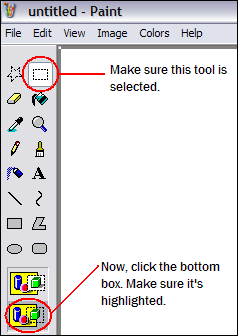 This will get rid of the white outline around the image. Now press Ctrl†V or go to Edit then click Paste on the top toolbar to paste your template.
 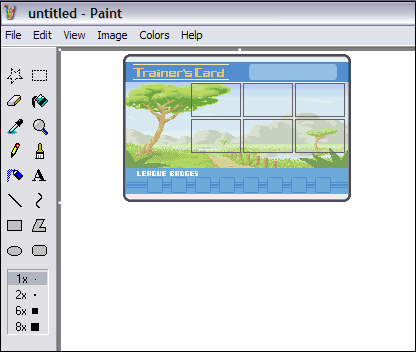 Step Two
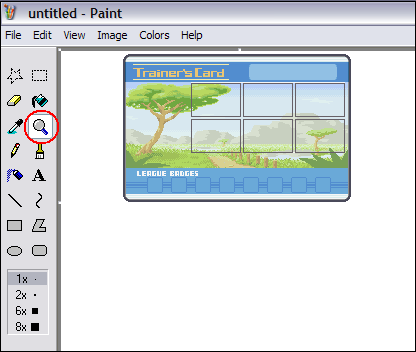 Now that we're zoomed in, it's time to add our Pokemon. Select one of the squares (making sure you select the border too) and copy it (use Ctrl†C or Edit then Copy on the toolbar).
 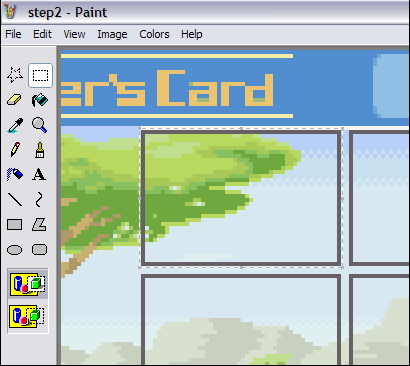 Now, paste the square below the template. Select the inside of the square (not the border) and press delete. You should now have a white space where the Pokemon will go.
 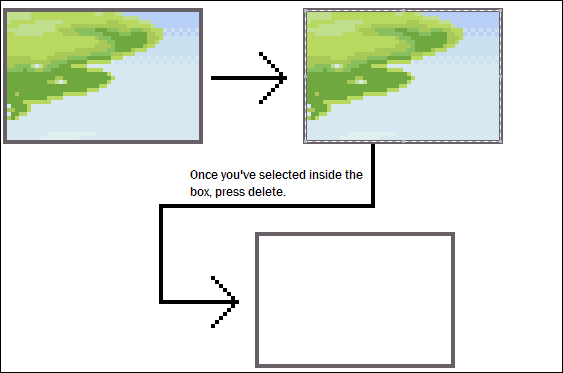 Now, copy and paste the white box five times, so that we have one for each of the six Pokemon.
 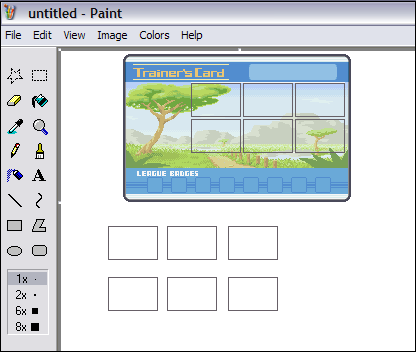 Now, choose your six Pokemon sprites. Click here for the links to Pokemon sprites. Right click the sprite you want, copy it, and then paste it onto Paint/MS Paint.
 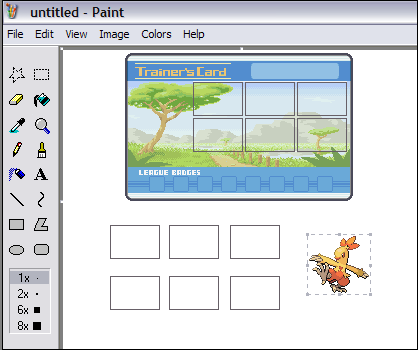 Now, grab one of the boxes and move it over the Pokemon.
 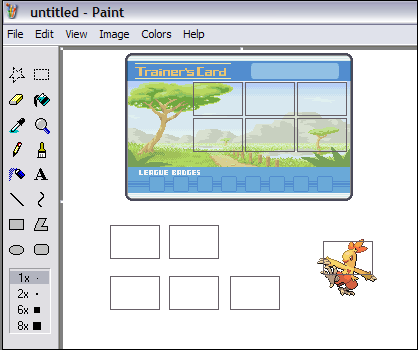 Now, delete everything outside the box.
 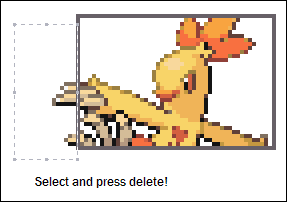 Now, select the Pokemon in the box and put it back onto the template. Make sure you line it up correctly.
 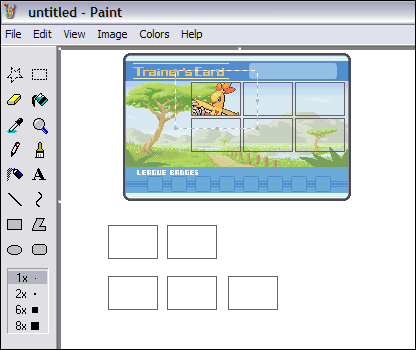 Now, repeat those steps for the other five Pokemon!
 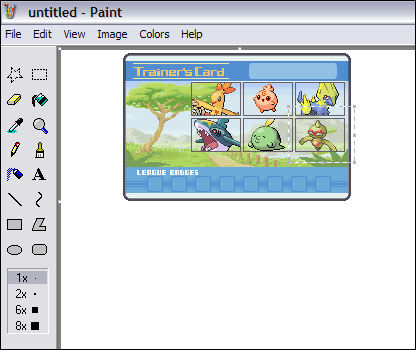 Step Three








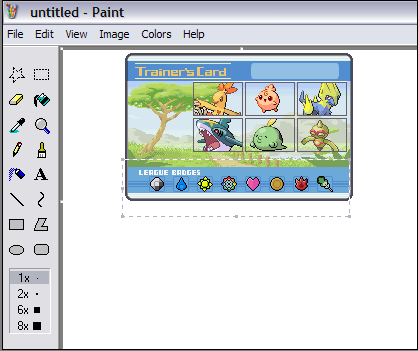 Step Four
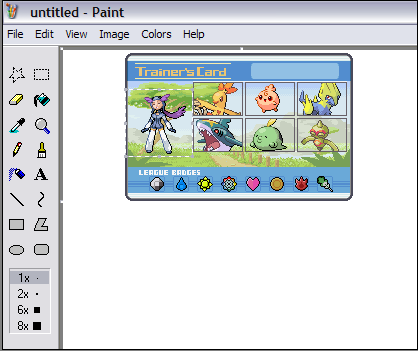 Easy, see!Step Five
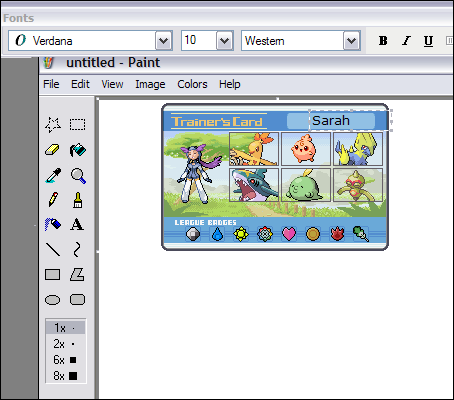 If you want, you can copy and paste the following letters individually instead: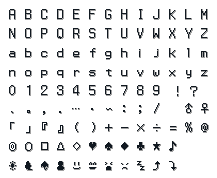
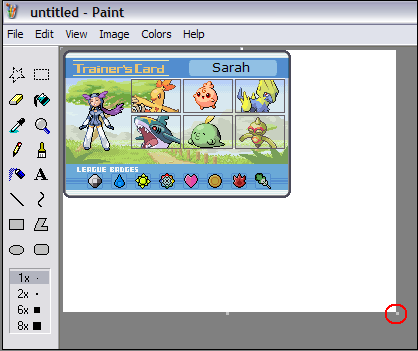 Now, using the point (highlighted in red) move the edge of the canvas so that it just surrounds the trainer card, like this...
 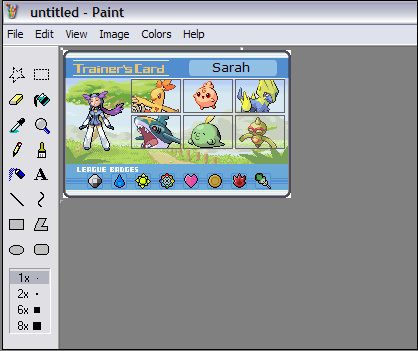 Now, saving the image. To get the best quality image, you should save your trainer card as a .PNG (highlighted here in red).
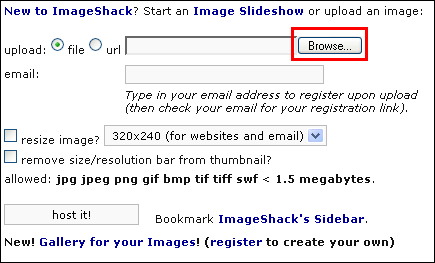
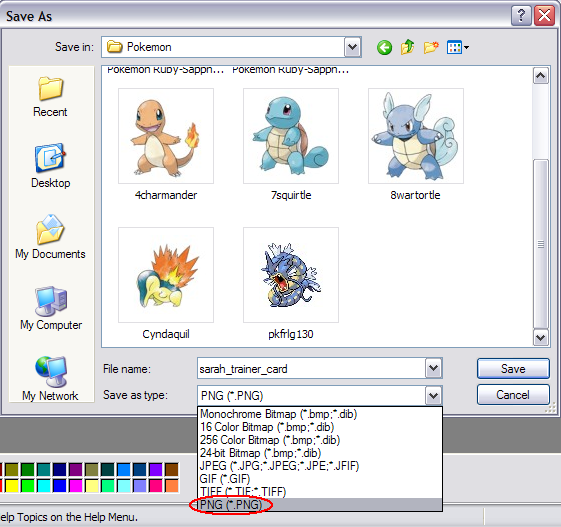 And there you go, your very own trainer card! Now all you have to do is upload it. If you don't know where to upload it, try http://www.imageshack.us Uploading on http://www.imageshack.us First, go to http://www.imageshack.us Then click Browse (highlighted in red below).
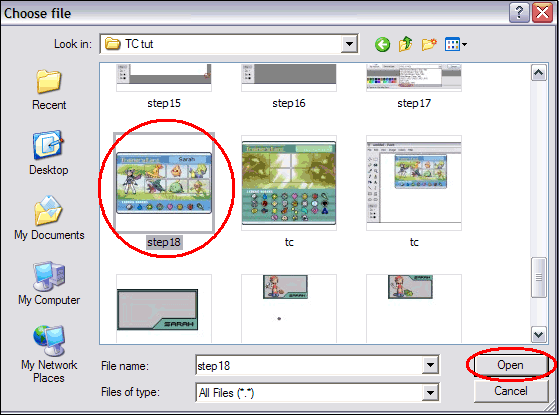
  Now, select the Trainer Card file that you want to upload, and then click Open.
  Now, press host it!.
 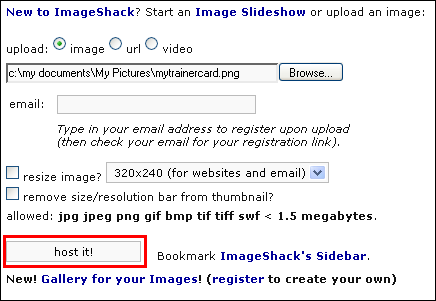 Once it's finished uploading, scroll down as far as you can. You should see something like this:
  Now, copy the code in the box that says Direct link to image (highlighted above). This is the URL of your image.Step Seven
 Once you have uploaded your image and are given the URL, you just place it in the middle of the image code, and then paste the code where you want your Trainer Card to show up. For example, the code that I would paste on my userlookup for my own Trainer Card would look like this:
  THE END
原帖由 Mayuki∼* 於 20/12/2008 05:50 PM 發表
呢個人地翻譯姐-.-
我地PNVE都有中文自製版啦-.-
| 歡迎光臨 香港寵物小精靈村落 論壇 (https://archive.pokebeacon.com/discuz.hkpnve.net/) | Powered by Discuz! X3.2 |
