For this tutorial, we will use this template.  Now, we need to right-click the template and click copy. Now open up Paint, or MS Paint. Now, we need to right-click the template and click copy. Now open up Paint, or MS Paint. 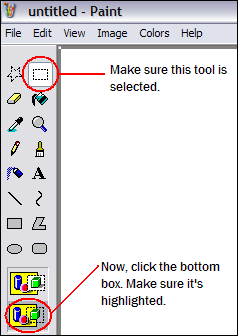 This will get rid of the white outline around the image. Now press Ctrl†V or go to Edit then click Paste on the top toolbar to paste your template. This will get rid of the white outline around the image. Now press Ctrl†V or go to Edit then click Paste on the top toolbar to paste your template. 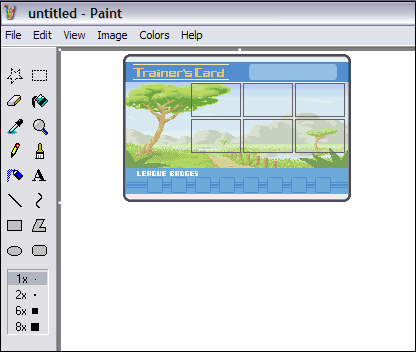 Step Two Step Two
Adding Pokemon NOTE: If at any time during this tutorial, the sprites you copy & paste end up with a black background, it is probably because of the browser you are using. Try using Internet Explorer, or save the sprite to your computer instead of directly copying and pasting it from PE2K. Now, you may want to zoom-in for this, so select the zoom-in tool and click your template. 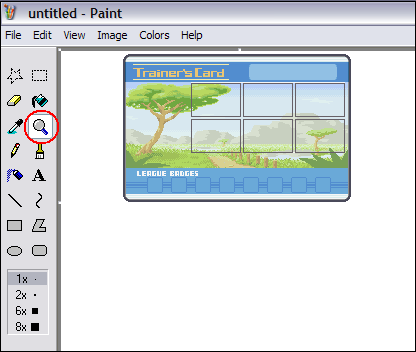 Now that we're zoomed in, it's time to add our Pokemon. Select one of the squares (making sure you select the border too) and copy it (use Ctrl†C or Edit then Copy on the toolbar). Now that we're zoomed in, it's time to add our Pokemon. Select one of the squares (making sure you select the border too) and copy it (use Ctrl†C or Edit then Copy on the toolbar). 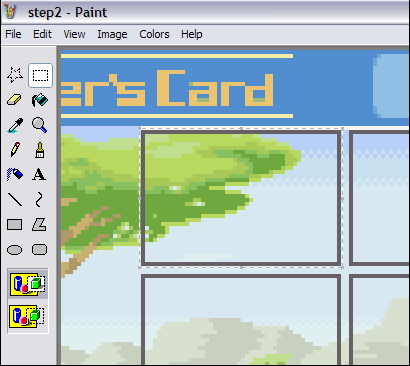 Now, paste the square below the template. Select the inside of the square (not the border) and press delete. You should now have a white space where the Pokemon will go. Now, paste the square below the template. Select the inside of the square (not the border) and press delete. You should now have a white space where the Pokemon will go. 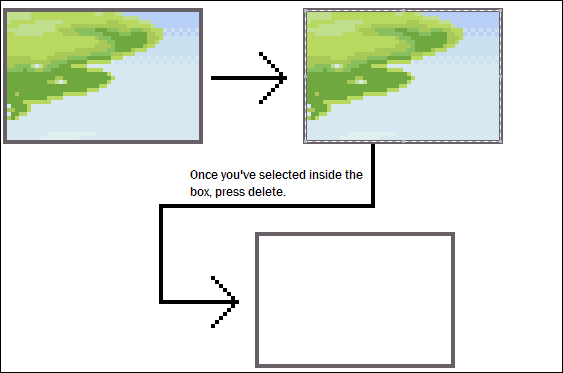 Now, copy and paste the white box five times, so that we have one for each of the six Pokemon. Now, copy and paste the white box five times, so that we have one for each of the six Pokemon. 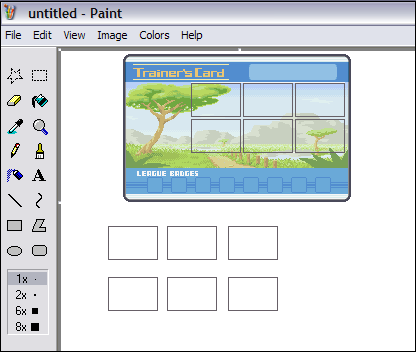 Now, choose your six Pokemon sprites. Click here for the links to Pokemon sprites. Right click the sprite you want, copy it, and then paste it onto Paint/MS Paint. Now, choose your six Pokemon sprites. Click here for the links to Pokemon sprites. Right click the sprite you want, copy it, and then paste it onto Paint/MS Paint. 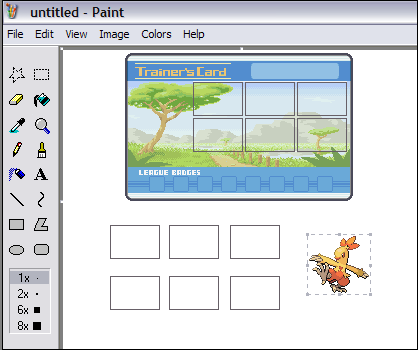 Now, grab one of the boxes and move it over the Pokemon. Now, grab one of the boxes and move it over the Pokemon. 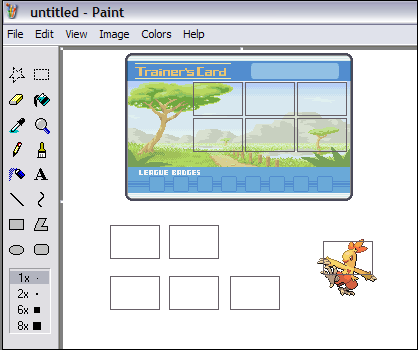 Now, delete everything outside the box. Now, delete everything outside the box. 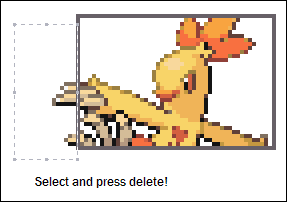 Now, select the Pokemon in the box and put it back onto the template. Make sure you line it up correctly. Now, select the Pokemon in the box and put it back onto the template. Make sure you line it up correctly. 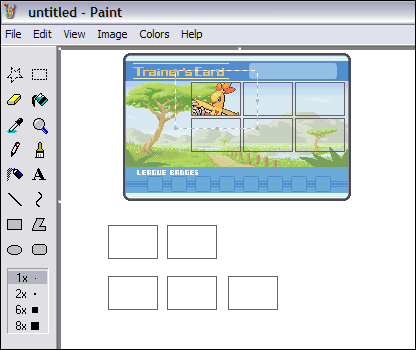 Now, repeat those steps for the other five Pokemon! Now, repeat those steps for the other five Pokemon! 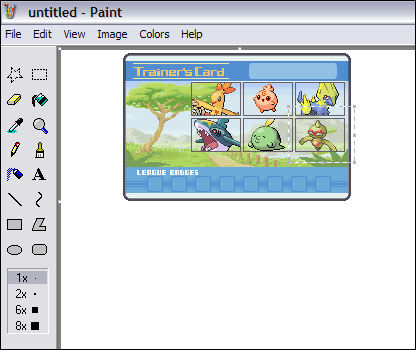 Step Three Step Three
Adding badges This is one of the easier steps. All you do is copy one of the following badge sets.Kanto:

Johto:

Hoenn:

Sinnoh:

Orange Islands:

Silver Battle Frontier Symbols:

Gold Battle Frontier Symbols:

Coordinator Ribbons:

Pokemon Ranger:

Now, paste the badge set onto MS Paint/Paint. Select it, and place it on top of the area where the badges go. Try to line it up correctly. 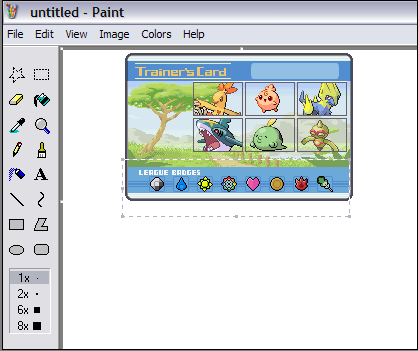 Step Four Step Four
Adding a Trainer Click here for links to trainer sprites. Choose the trainer you want and copy and paste it straight onto the template, like so.
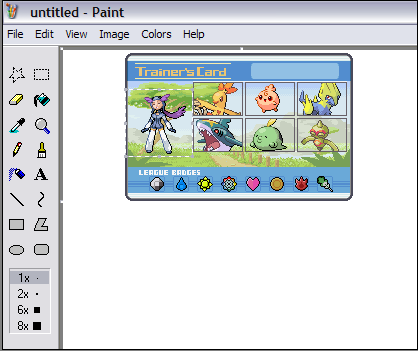 Easy, see!Step Five Easy, see!Step Five
Adding text Click the "A" tool to add text. Click where you want the text to go. You can choose whatever type of font you like, but I like to use Verdana, size 10. 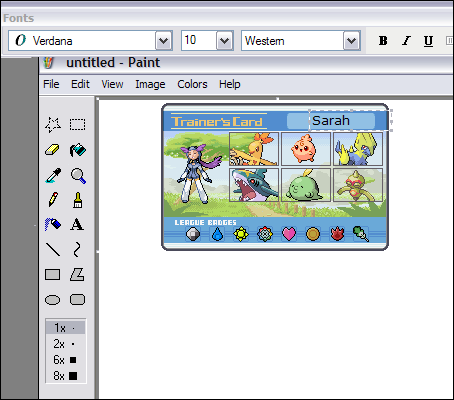 If you want, you can copy and paste the following letters individually instead: If you want, you can copy and paste the following letters individually instead:
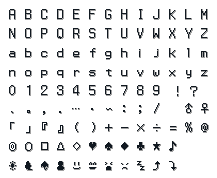
Step Six
Saving and Uploading Now that your trainer card is finished, you can move it to the corner of the page. 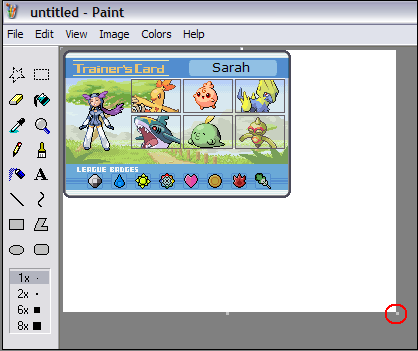 Now, using the point (highlighted in red) move the edge of the canvas so that it just surrounds the trainer card, like this... Now, using the point (highlighted in red) move the edge of the canvas so that it just surrounds the trainer card, like this... 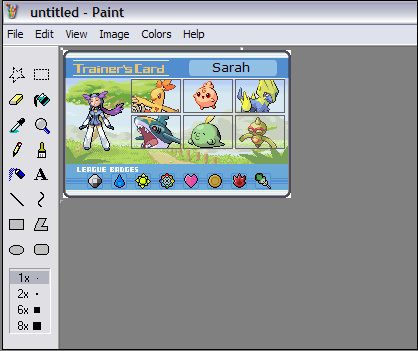 Now, saving the image. To get the best quality image, you should save your trainer card as a .PNG (highlighted here in red). Now, saving the image. To get the best quality image, you should save your trainer card as a .PNG (highlighted here in red).
NOTE: .PNG images do not seem to be working for some people on Neopets for some reason. If your card comes out tiny, or doesn't show up at all when you put it on your userlookup/petpage and you know that you have the correct URL/code you may need to save the card as a .JPG or .GIF instead. 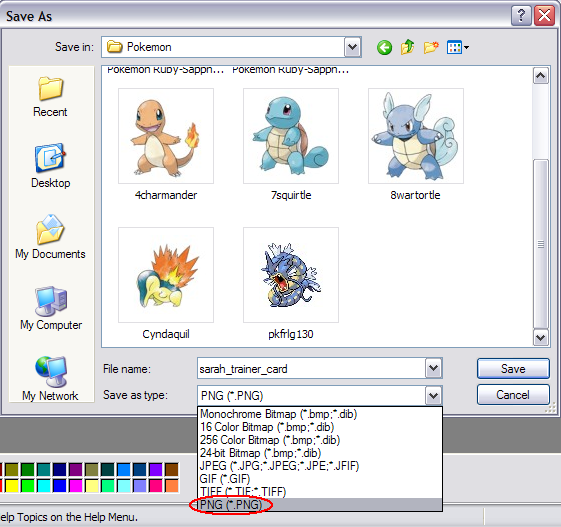 And there you go, your very own trainer card! Now all you have to do is upload it. If you don't know where to upload it, try http://www.imageshack.us Uploading on http://www.imageshack.us First, go to http://www.imageshack.us Then click Browse (highlighted in red below). And there you go, your very own trainer card! Now all you have to do is upload it. If you don't know where to upload it, try http://www.imageshack.us Uploading on http://www.imageshack.us First, go to http://www.imageshack.us Then click Browse (highlighted in red below). 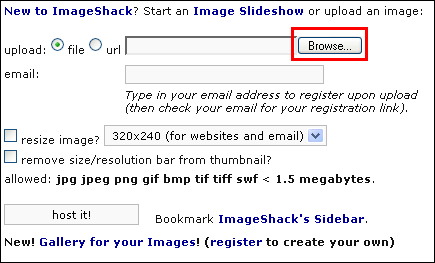 Now, select the Trainer Card file that you want to upload, and then click Open. Now, select the Trainer Card file that you want to upload, and then click Open. 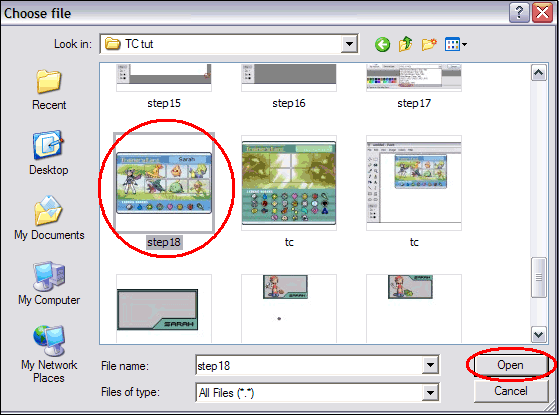 Now, press host it!. Now, press host it!. 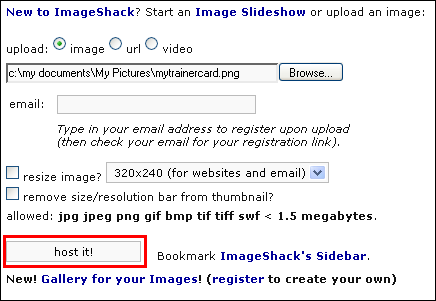 Once it's finished uploading, scroll down as far as you can. You should see something like this: Once it's finished uploading, scroll down as far as you can. You should see something like this:  Now, copy the code in the box that says Direct link to image (highlighted above). This is the URL of your image.Step Seven Now, copy the code in the box that says Direct link to image (highlighted above). This is the URL of your image.Step Seven
Adding to a page To add your trainer card to your userlookup, shop or petpage, you must use this HTML code.  Once you have uploaded your image and are given the URL, you just place it in the middle of the image code, and then paste the code where you want your Trainer Card to show up. For example, the code that I would paste on my userlookup for my own Trainer Card would look like this: Once you have uploaded your image and are given the URL, you just place it in the middle of the image code, and then paste the code where you want your Trainer Card to show up. For example, the code that I would paste on my userlookup for my own Trainer Card would look like this:  THE END THE END
If you have any questions, please neomail special_dude55.
If you are having trouble putting the card on your lookup, neomail the link/URL to special_dude55. You might have to put spaces in between so it will go through. I will neomail you back the correct code. |





 收藏
收藏 分享
分享 撐
撐 踩
踩 提升卡
提升卡 變色卡
變色卡 千斤頂
千斤頂

